Engineering12 min read
How to Run Multiple Claude Code Accounts on One Machine (Work and Personal)
Run your work and personal Claude Code accounts side by side, without logging in and out. A step-by-step guide for macOS, Windows and Linux, with each account locked to its own folder.
Outline
- Why run two accounts
- How it works
- Step-by-step setup
- Step 1: Find your shell config file
- Step 2: Create two config folders
- Step 3: Decide on two working folders
- Step 4: Add two shell functions
- Step 5: Make Git Bash load .bashrc (Windows only)
- Step 6: Reload your shell
- Step 7: Log in to each account
- Step 8: Confirm each account
- Step 9: Run both at once
- Tips for macOS, Windows and Linux
- Locking each account to its folder
- Managing the accounts day to day
- Limitations: the VS Code panel and file uploads
- Safety and troubleshooting
- Wrapping up
Why run two accounts
You can run a work Claude Code account and a personal one on the same computer, at the same time, without logging in and out. Each account gets its own folder for login, settings and history, and each one only opens inside the code it belongs to.
This matters for a few reasons:
- Boundaries. Work code stays with the work account, and side projects stay with yours. Your employer's plan pays for work, not your weekend experiments.
- Separate limits. Each account has its own usage limits. Hitting a limit on one does not stop the other.
- Separate context. Instructions, MCP servers and permissions can differ. Your work setup can follow team conventions while your personal setup follows your own.
- No mistakes. You never commit personal experiments with a company account, or open a client repo under the wrong login.
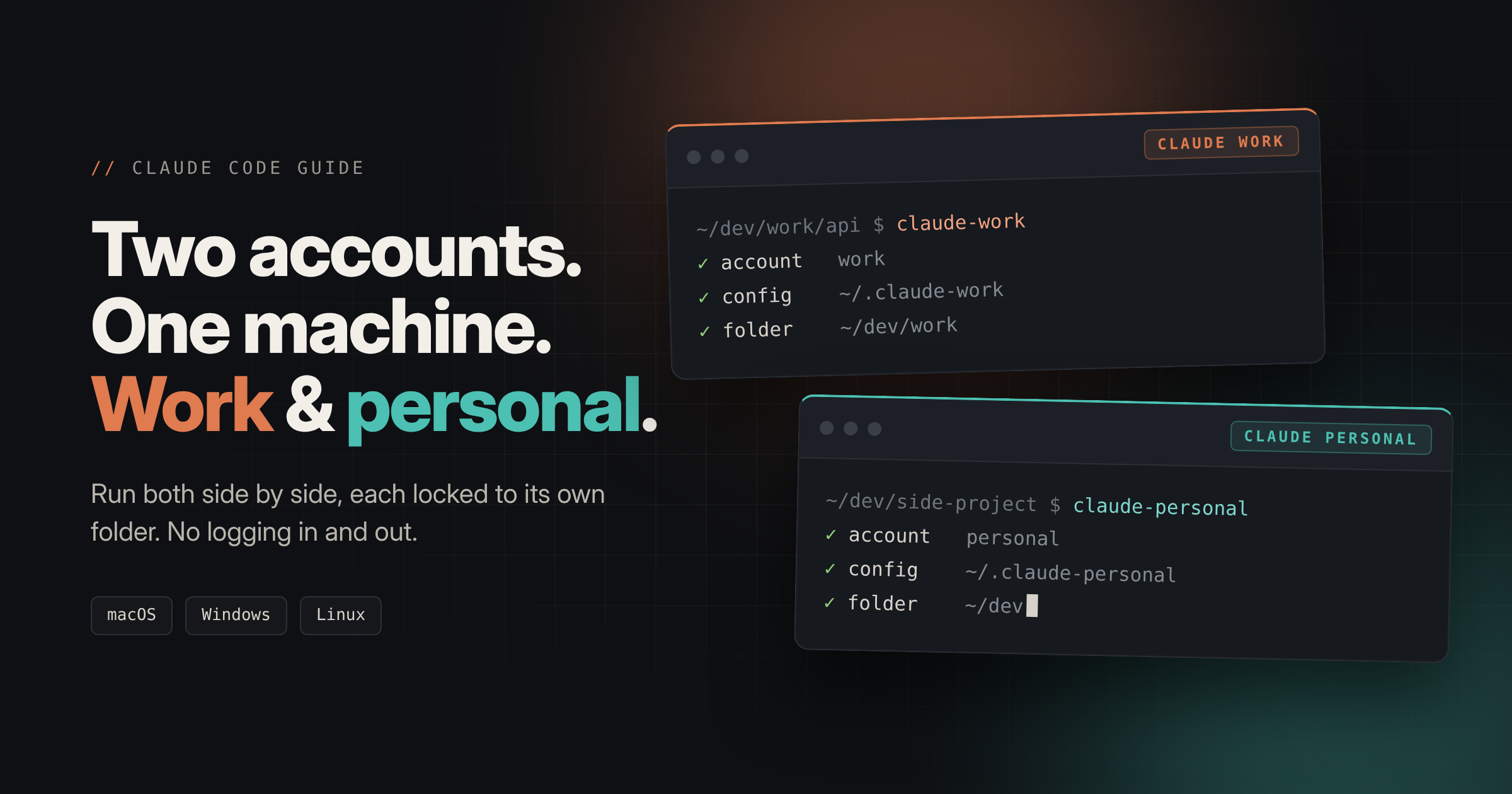
By the end of this guide you will have two commands, claude-work and claude-personal. Each one opens the right account in the right folder.
<a id="how-it-works"></a>
How it works
Two things control which account Claude Code uses and what it can touch: the config folder and the working folder.
The config folder. By default, Claude Code keeps everything in ~/.claude. If you set the CLAUDE_CONFIG_DIR environment variable, it uses that folder instead. Point it at a different folder and Claude Code behaves like a fresh install, with its own login.
| Kept per config folder | Shared between accounts |
|---|---|
| Login and credentials | The Claude Code program itself |
settings.json and permissions | Project files and project CLAUDE.md |
Global CLAUDE.md | Your git config |
| MCP servers, custom commands, agents | Your terminal and shell |
Session history (--continue, --resume) |
The working folder. Claude Code works in the folder you start it from. It can edit files there and in subfolders, and asks before touching anything outside. If you start it in your home folder, it asks to trust your whole home folder, which is far too much access.
The setup below combines both: each command sets its own config folder and starts in its own working folder.
<a id="step-by-step-setup"></a>
Step-by-step setup
These steps work on macOS, Linux and Windows with Git Bash. You need Claude Code installed and two Claude accounts.
<a id="step-1-find-your-shell-config-file"></a>
Step 1: Find your shell config file
echo $SHELL
- Ends in
zsh(the macOS default): your file is~/.zshrc. - Ends in
bash(Linux, Git Bash): your file is~/.bashrc.
<a id="step-2-create-two-config-folders"></a>
Step 2: Create two config folders
mkdir -p ~/.claude-work
mkdir -p ~/.claude-personal
<a id="step-3-decide-on-two-working-folders"></a>
Step 3: Decide on two working folders
Pick where your work code and personal code live. This guide uses these examples:
- Work:
~/dev/work - Personal:
~/dev/personal
On Windows Git Bash, drive paths use forward slashes. C:\Users\YOU\dev\work becomes /c/Users/YOU/dev/work.
<a id="step-4-add-two-shell-functions"></a>
Step 4: Add two shell functions
Open your config file. On macOS, use .zshrc instead of .bashrc here and in Step 6:
nano ~/.bashrc
Go to the end of the file (Alt + / in nano) and paste this, with your own paths:
# Claude Code: work account
claude-work() {
  ( cd "$HOME/dev/work" && CLAUDE_CONFIG_DIR="$HOME/.claude-work" claude "$@" )
}

# Claude Code: personal account
claude-personal() {
  ( cd "$HOME/dev/personal" && CLAUDE_CONFIG_DIR="$HOME/.claude-personal" claude "$@" )
}
In Git Bash, Ctrl + V does not paste into nano. Use Shift + Insert or right-click and choose Paste. Save with Ctrl + O, then Enter, and exit with Ctrl + X.
The parentheses run each command in a subshell. The folder change and the account setting only apply while Claude Code runs. When you exit, your terminal returns to where it was.
Use functions, not aliases. An alias cannot change folders cleanly, and an alias with the same name as a function breaks it.
<a id="step-5-make-git-bash-load-bashrc-windows-only"></a>
Step 5: Make Git Bash load .bashrc (Windows only)
Git Bash reads ~/.bash_profile first, which may not load .bashrc. Run this once:
grep -q "bashrc" ~/.bash_profile 2>/dev/null || echo 'if [ -f ~/.bashrc ]; then . ~/.bashrc; fi' >> ~/.bash_profile
<a id="step-6-reload-your-shell"></a>
Step 6: Reload your shell
source ~/.bashrc
Opening a new terminal window also works.
<a id="step-7-log-in-to-each-account"></a>
Step 7: Log in to each account
claude-work
Claude Code asks whether you trust the folder. Check that the path is your work folder, then choose "Yes, I trust this folder". Type /login inside Claude Code and sign in with your work account in the browser.
Repeat with claude-personal and your personal account. If the browser signs you straight into the wrong account, use a private window or sign out of claude.ai first.
<a id="step-8-confirm-each-account"></a>
Step 8: Confirm each account
Inside each session, run:
/status
It shows the signed-in account. If it is wrong, run /logout, then /login again.
<a id="step-9-run-both-at-once"></a>
Step 9: Run both at once
Open two terminal windows and run one command in each. They work side by side without logging each other out.
<a id="tips-for-macos-windows-and-linux"></a>
Tips for macOS, Windows and Linux
The functions are identical everywhere. What changes is the config file, the paths and a few shortcuts.
| macOS | Windows (Git Bash) | Linux | |
|---|---|---|---|
| Default shell | zsh | bash | bash (usually) |
| Config file | ~/.zshrc | ~/.bashrc (plus Step 5) | ~/.bashrc |
| Reload | source ~/.zshrc | source ~/.bashrc | source ~/.bashrc |
| Example work path | $HOME/dev/work (/Users/you/dev/work) | /c/Users/YOU/dev/work | $HOME/dev/work (/home/you/dev/work) |
| Paste text in terminal | Cmd + V | Shift + Insert or right-click | Ctrl + Shift + V |
| Paste an image into Claude Code | Ctrl + V (not Cmd + V) | Ctrl + V, or Alt + V | Ctrl + V |
| Command palette in VS Code | Cmd + Shift + P | Ctrl + Shift + P | Ctrl + Shift + P |
| Where the login is stored | macOS Keychain | Config folder | Config folder |
<a id="macos"></a>
macOS
- Edit your config without nano. Run
open -e ~/.zshrcto open it in TextEdit, orcode ~/.zshrcfor VS Code. Ifcodeis not found, open VS Code, press Cmd + Shift + P and run Shell Command: Install 'code' command in PATH. - Logins live in the Keychain. Claude Code on macOS keeps your login in the Keychain, not the config folder. Recent versions keep a separate Keychain entry for each config folder. If logging in to one account signs the other one out, run
claude updateand log in to both again. Open the Keychain Access app and search for "Claude Code-credentials" to see one entry per account. - See the hidden folders.
.claude-workand.claude-personalare hidden in Finder. Press Cmd + Shift + . in your home folder to show them. - Drag files from Finder. Dropping a file into Terminal or iTerm2 pastes its path. In the VS Code terminal, hold Shift while dropping.
- Window titles work. The title line from the "Label your terminal windows" tip works in Terminal, iTerm2 and the VS Code terminal.
<a id="windows"></a>
Windows
- Use Git Bash, so you can use the same functions as macOS and Linux. Set it as VS Code's default terminal with Terminal: Select Default Profile.
- If you prefer PowerShell, define a function in your
$PROFILEthat sets$env:CLAUDE_CONFIG_DIR, runsclaudein atryblock, and clears the variable infinally. Otherwise the variable stays set after you exit.
<a id="linux"></a>
Linux
- The Git Bash steps apply as written, minus Step 5.
- Your login is stored as a file inside each config folder, which is another reason to keep those folders out of git and synced drives.
<a id="locking-each-account-to-its-folder"></a>
Locking each account to its folder
The functions above always open a fixed folder. That works, but it gives Claude Code access to every project inside that folder at once. A tighter option is to start in whichever project you are in, and refuse to start anywhere else.
claude-work() {
  case "$PWD" in
    "$HOME/dev/work"*)
      CLAUDE_CONFIG_DIR="$HOME/.claude-work" claude "$@" ;;
    *)
      echo "Run claude-work from inside your work folder." ;;
  esac
}
Now you cd into one project first, then run claude-work. Claude Code only gets access to that project.
<a id="when-one-folder-sits-inside-the-other"></a>
When one folder sits inside the other
A common layout puts work code inside your general dev folder, for example ~/dev/organizations/company. Without a guard, the personal account can open your work code. Check the work path first, then the personal one:
claude-personal() {
  case "$PWD" in
    "$HOME/dev/organizations/company"*)
      echo "This is a work folder. Use claude-work instead." ;;
    "$HOME/dev"*)
      CLAUDE_CONFIG_DIR="$HOME/.claude-personal" claude "$@" ;;
    *)
      echo "Run claude-personal from inside your dev folder." ;;
  esac
}
The order matters. The case statement uses the first pattern that matches, so the more specific work path must come first.
<a id="giving-temporary-access-to-another-folder"></a>
Giving temporary access to another folder
If a task needs one extra folder, add it for that session only:
claude-work --add-dir "$HOME/dev/shared-library"
<a id="managing-the-accounts-day-to-day"></a>
Managing the accounts day to day
<a id="give-each-account-its-own-instructions"></a>
Give each account its own instructions
Each config folder has its own global CLAUDE.md, which Claude reads at the start of every session:
nano ~/.claude-work/CLAUDE.md
nano ~/.claude-personal/CLAUDE.md
Put team conventions in the work file: your UI library, data-fetching patterns, commit style, review rules. Put your own habits in the personal file. A CLAUDE.md inside a repo still loads for whichever account opens it.
<a id="commit-with-the-right-git-identity"></a>
Commit with the right git identity
The Claude accounts are separate, but git is not. Git's includeIf switches your identity by folder. Add this to ~/.gitconfig:
[includeIf "gitdir/i:~/dev/work/"]
    path = ~/.gitconfig-work
On Windows, you can use the drive path, for example gitdir/i:C:/Users/YOU/dev/work/. The trailing slash matters.
Then create ~/.gitconfig-work:
[user]
    name = Your Name
    email = you@company.com
Run git config user.email inside a work repo to confirm.
<a id="label-your-terminal-windows"></a>
Label your terminal windows
Add a title line at the start of each function so you can tell the windows apart:
claude-work() {
  printf '\033]0;CLAUDE WORK\007'
  ( cd "$HOME/dev/work" && CLAUDE_CONFIG_DIR="$HOME/.claude-work" claude "$@" )
}
<a id="configure-settings-and-mcp-servers-per-account"></a>
Configure settings and MCP servers per account
Anything you add through one command applies only to that account:
claude-work mcp add ...
claude-personal mcp add ...
The same goes for settings.json, permission rules, custom commands and agents. To start the new accounts with your existing setup, copy what you want from ~/.claude:
cp ~/.claude/settings.json ~/.claude-work/ 2>/dev/null
cp ~/.claude/CLAUDE.md ~/.claude-work/ 2>/dev/null
cp -r ~/.claude/commands ~/.claude-work/ 2>/dev/null
<a id="choose-a-permission-mode-per-account"></a>
Choose a permission mode per account
Press Shift + Tab inside Claude Code to cycle permission modes. On work repos, you may prefer approving each edit and command yourself. On personal projects, a more automatic mode can save time.
<a id="know-what-is-separate-and-what-is-shared"></a>
Know what is separate and what is shared
- Usage limits are per account. If one hits its limit, the other still works.
- History is per account.
claude-work --continueonly sees work sessions. - Flags still work:
claude-work --resume,claude-personal --add-dir .... - The program is shared. Running
claude updateonce updates both.
<a id="block-the-plain-claude-command-optional"></a>
Block the plain claude command (optional)
Plain claude uses the default ~/.claude folder, which is a third profile. To make sure you always pick an account on purpose, add this to your config file:
claude() {
  if [ -z "$CLAUDE_CONFIG_DIR" ]; then
    echo "Use claude-work or claude-personal."
  else
    command claude "$@"
  fi
}
Your two functions set CLAUDE_CONFIG_DIR before calling claude, so they pass straight through.
<a id="limitations-the-vs-code-panel-and-file-uploads"></a>
Limitations: the VS Code panel and file uploads
This setup works fully in the terminal. Two things work differently from what you might expect.
<a id="the-vs-code-panel-cannot-switch-accounts"></a>
The VS Code panel cannot switch accounts
The Claude Code panel in VS Code has no account switcher. Changing its account means logging out and back in.
In theory, the extension's claudeCode.environmentVariables setting could set CLAUDE_CONFIG_DIR per project. In practice, there is an open bug report on GitHub (issue #30538, "VS Code extension ignores CLAUDE_CONFIG_DIR environment variable") saying the extension ignores this variable and always uses the default ~/.claude folder. If you try it, run /status in the panel to check which account it actually uses.
Workaround: keep the panel signed in to the account you use most, and run the other account in VS Code's built-in terminal.
- Set Git Bash as the default terminal on Windows: press Ctrl + Shift + P, run Terminal: Select Default Profile and choose Git Bash. On macOS and Linux, the default terminal already works.
- Open the terminal with Ctrl + ` (backtick).
cdinto the project and runclaude-personal(orclaude-work).
The panel and the terminal run side by side. Nothing gets logged out.
For this workflow, the "current folder" functions from the locking section fit better than the fixed-folder ones, because they start in the project you already have open.
<a id="the-terminal-has-no-upload-button"></a>
The terminal has no upload button
In the terminal, Claude reads files straight from your disk, so you point it at a file instead of uploading it.
| Method | How |
|---|---|
| @ mention | Type @ and part of the file name, for example explain @src/api/payments.ts. It autocompletes from your project. |
| Drag and drop | Drag a file from the VS Code sidebar into the terminal. From Windows File Explorer or macOS Finder, hold Shift while dropping onto the VS Code terminal. The path is pasted in. |
| Type or paste the path | read C:\Users\YOU\Downloads\brief.pdf and list the requirements. Windows, Git Bash and macOS/Linux paths all work. |
| Screenshots | Copy the image and press Ctrl + V in Claude Code (Ctrl, not Cmd, on macOS). On Windows, try Alt + V if that does nothing. |
Code, text, Markdown, CSV, JSON, PDFs and images all work this way. For Word or Excel files, save as PDF or CSV first for the best results.
Because each account is locked to its folder, files elsewhere (like Downloads) trigger a permission prompt. Approve it, copy the file into the project, or start the session with access to that folder:
claude-personal --add-dir "$HOME/Downloads"
<a id="safety-and-troubleshooting"></a>
Safety and troubleshooting
<a id="keep-the-config-folders-private"></a>
Keep the config folders private
~/.claude-work and ~/.claude-personal hold your login credentials. Never commit them to git or keep them in a cloud-synced folder like OneDrive or Dropbox.
<a id="never-trust-your-home-folder"></a>
Never trust your home folder
If Claude Code asks to trust your home folder (for example C:\Users\YOU or /Users/you), choose "No, exit". That gives it access to everything you own. Start it from a project folder instead.
<a id="common-problems"></a>
Common problems
| Problem | Fix |
|---|---|
claude-work: command not found | Run source ~/.bashrc (or source ~/.zshrc on macOS). On Git Bash, check Step 5. |
| Wrong account after login | Run /status, then /logout and /login in a private browser window. |
| Trust prompt shows the wrong folder | Check the path in the function. Windows paths need the /c/... form in Git Bash. |
| Function gives a syntax error | Delete any old alias with the same name from your config file. |
Plain claude uses the wrong account | Your shell still has CLAUDE_CONFIG_DIR set. Use the subshell functions above, or open a new terminal. |
| Settings or MCP servers missing | They are per account. Add them again with that account's command. |
| On macOS, one login signs the other out | Run claude update and log in to both accounts again. |
<a id="wrapping-up"></a>
Wrapping up
Two config folders and two short shell functions give you clean separation: the right account, in the right folder, with the right instructions and git identity. Once it is set up, you just type claude-work or claude-personal and get to work.